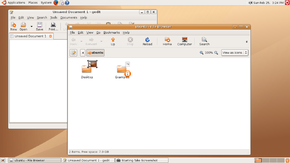
Window - the basic concept of a window interface , an interface container . In addition to child interface elements, a window can also contain controls for the window itself. An important feature of windows is the ability to overlap , that is, to be placed on top of each other, completely or partially closing the bottom window.
Content
History
For the first time, the concept of overlapping windows, like many other concepts of user interfaces, was developed at the Xerox PARC research center for the Xerox Alto system, and more specifically for the smalltalk language development environment in 1974 [1] [2] . In this environment, windows already had borders and headings , but no window control buttons appeared yet. The window interface was further developed in the Xerox Star environment, but the first commercially successful computer using windows was the Apple Macintosh released in 1984.
The main parts of the window

- window contents ;
- window frame - separates the contents of one window from another, lying below. In addition, in modern window managers, the window frame allows you to resize the window by dragging the window border or corner. For compactness and reduction of visual noise it can be replaced by a shadow from a window;
- resizing corner - located in the lower right corner of the window and provides additional area for resizing the window (see Fitts law ). Not present in all windows;
- Window title - usually located at the top of the window and contains the name of the window, as well as window control buttons. If the window does not support free drag and drop, the title is the area that allows you to drag the window. Sometimes the window title may be hidden, and other controls, such as browser tabs, may be displayed in the title;
- Window control buttons - starting with Windows 95 , a typical set of buttons is:
- window menu - at the same time is an application icon. Located on the left side of the header;
- Minimize (_) - in earlier OSs, it turned the application window into an icon on the desktop , in newer ones it hides the window, leaving a button on the taskbar ;
- expand (□) - allows you to expand the window to full screen, or switch the application to full screen mode;
- close (×) - allows you to exit the application, or close a specific window. The “×” symbol for closing a window first appeared in Atari TOS in 1985, later - independently of it in NeXTSTEP , but it became widespread with the release of Windows 95 [3] .
On some systems, such as OS X, window control buttons are located on the left. In addition, in OS X prior to version 10.7, there was no full-screen mode button.
Window Behavior Features
Moving Windows
When using the window interface, most windows can freely move around the screen. Typically, windows are moved when capturing the window title, however, if necessary, you can also specify an arbitrary area for moving, or the entire window, except for the interface elements located on it. You can also move windows by selecting an item in the window menu - in this case, the ability to move a window is also available from the keyboard.
The appearance of new windows is usually not regulated by the system, and they occupy a place in the middle of the screen, or specified during the development of the program. Some window managers, such as those that are part of the KDE environment, have newly opened dialog boxes and warning windows so that they do not overlap those that are already open. Another way is to cascade the newly opened dialog boxes, that is, with a slight offset from the previous one, so that the window title remains visible.
When moving windows, the “ stick ” effect can be used. An area appears near the border of such a window, and if the border of another window is in this area, the window being moved becomes close to another, and remains motionless until the user, moving the cursor, tries to move the window outside of this area. An example of this approach is the Winamp player , in which the sticking effect implements one more function: the child windows of the program, after sticking to the main window, can move with it as one window. Child windows of the same player stuck together do not have this effect.
Window size control
Usually, you can change the window size in three ways - through the window menu (in this case, resizing is possible from the keyboard), by moving the borders of the window or a special area in the lower right corner of the window.
When you reduce the size of the window, some important controls may become unavailable. To avoid this, the minimum window size is set. If there are too many controls, either when the window is reduced, they either go to a special menu or scroll bars appear in the window. Some windows do not allow resizing, among them - most of the dialog boxes .
Some window managers save the size and position of windows after they are closed for subsequent recovery upon reopening, others, including the Windows window manager, shift this work to the application itself.
Full Screen
In the Windows family of OS, most windowed applications can use "pseudo-full screen mode." When you click on the "maximize" button, the window occupies the entire available screen area, except for the taskbar . In this case, all window elements, except the frame, remain. For some types of applications, for example, playing videos, this mode is unacceptable, and such applications usually close the screen completely without displaying most controls in this mode, or displaying a simplified version of them. A similar mode is available in OS X, starting with version 10.7 “Lion” .
Hide window
Most modern operating systems and window managers have a minimize button in windows. When you click on this button, the application window is hidden, but the application itself does not stop working. On different operating systems, the default behavior of this button may vary. In systems with a taskbar , the application window can be called up by clicking on the application button on the taskbar. If there is no task bar, the minimized window either decreases to one title, or an icon appears on the desktop (in older versions of Windows - in the program manager window) and you can open the window by clicking on it. The same thing works for application child windows that do not appear in the taskbar but have a minimize button.
Close window
For the main application window, closing the window usually involves exiting the application or document (when using the multi-document interface). Some applications, such as Skype , do not shut down when you click the close button, but have a special function for this purpose in the application menu. The close button in them works almost the same as the minimize button.
For application child windows, closing usually means only hiding it, without unloading any data from memory. Such windows can usually be returned from the application menu, or by some controls in the main window.
In dialogs, closing a window usually works similar to clicking on the “cancel” button. Some windows may block the possibility of closing, for example, if an action is being performed to cancel which you need to perform some other operations. Also, when working with documents, in the absence of the autosave function for documents, the mode is applied when, when you click on the close button, a dialog appears offering to save the changes made. When using backup utilities such as Time Machine , such dialogs are considered antipatterns .
Window Overlay
In most cases, the windows overlap each other so that the currently active window is placed on top of the others, followed by the window that was previously active, and so on. However, for some windows you can enable the “on top of all windows” mode, in which the window cannot be blocked by others, even if it is inactive. In some window managers, for example Openbox , the ability to position the window on top of the others is available from the window menu, and there is also the option to display a button with this function next to the standard window control buttons.
Child application windows, including panels and palettes, as well as dialog boxes, usually overlap the main application window, even if the input focus is not in it, while for other applications these windows are equivalent to the main application window and overlap them in the same way as the main thing.
Varieties of windows
Dialogs
Dialogs are usually not the main application windows, are not displayed in the taskbar and cannot be expanded to full screen, and often do not even allow you to resize the window. The dialog box should be closed after the action or reading the message, for this there are buttons in the dialog box, clicking on which closes the window. Therefore, the dialog box also does not need a close button. OS X stands apart, where dialogs in most cases are not windows, but special controls that appear from under the title bar of the parent window.
Modal Window
A modal window is a window, usually a dialog, the opening of which blocks access to the elements of the parent window.
Panels, Palettes, and Floating Windows
Panels, palettes and floating windows are usually located on top of the main application window or document window, even if it has input focus. When using MDI or a multi-window interface, panels, as a rule, remain common to all documents. Usually, panels and palettes have a simplified window view with a reduced title and without the “maximize” and “maximize” buttons. When using the Drag and Dock technology, the panel, if brought to the edge of the window, turns into a toolbar .
Document windows in multi-document applications
In multi-document applications, window behavior depends on which kind of multi-document interface is used.
In SDI, the document window is essentially the main application window. If there are several documents, all application windows are equivalent. Exiting the application occurs when all application windows are closed. Switching between application windows is the same as switching between applications: for example, through the taskbar.
The tabbed interface usually has one window, however, some applications allow you to have several windows open, and transfer tabs from one window to another - such windows work like with SDI.
MDI assumes the existence of the main application window and document windows located inside the main window. Closing all document windows does not exit the program - in this case, only an empty area for windows is displayed. If the document window is expanded , it loses the title and frame, and the window control buttons and application icon are transferred to the menu bar . If the window is minimized, it behaves in the same way as a regular window in the absence of a taskbar. If several document windows are open, and they are expanded to full screen, switching between them occurs through the “window” item in the menu bar .
A multi-window interface usually involves the use of panels and floating windows common to all documents. One of these panels may be the main window at the same time, closing it will close the application, but some applications may also close when all document windows are closed (as with SDI).
Inkscape in SDI mode. Each document window has toolbars.
GIMP with tabs. In each tab - a thumbnail image of the document
Qt Designer in MDI mode. The right edge of the document window crawled out of the MDI area - a scroll bar is visible
GIMP in multi-window mode. To the left, to the right and to the bottom of the document window are floating windows
Stylized Windows
Some programs, such as media players, can use stylized windows that independently control the display and behavior of all controls. Such programs often allow you to use customizable appearance. Often in such programs, familiar controls have a slightly different purpose, or are located elsewhere. For example, in the Winamp player , and others using the same cover interface, the button between “close” and “minimize” does not expand the player to full screen, but reduces its window to the size of the title, while some widgets are transferred to the title, allowing you to control the player in a minimized condition.
Alternatives
Using windows is inconvenient on mobile devices due to the small screen size and focus on managing your fingers with the touchscreen. In them, each application is deployed to full screen, or exists as an icon in the notification area . Also, in full-screen mode, programs that play videos, image viewers and many computer games usually work.
On large screens, on the contrary, it may be more convenient to use a frame window manager where applications are located in disjoint areas. Frames minimize mouse use.
Some applications may not require windows at all to display interface elements. The program interface can be displayed within an icon, live tile or gadget.
Notes
Literature
- Alan Cooper. about the interface. Design Basics = About Face. The Essentials of Interaction Design. - 3. - St. Petersburg: Symbol-Plus, 2009 .-- S. 476-493. - 688 p. - 1,500 copies - ISBN 978 5 93,286 132 5 .
- Windows - OS X Human Interface Guidelines