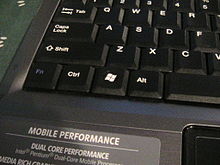
⊞ Win - a key on the keyboards of PC-compatible computers , which appeared in the second half of the 1990s after the release of Windows 95 . It is usually between the left Ctrl and Alt , as well as AltGr and ≣ Menu . In a Windows environment , it is used to invoke the Start menu . The design and layout of the keys is regulated by Microsoft . The font has a corresponding character.
Intel in version 1.1 of its “ Common Building Block ” standard requires laptops sold with Windows Vista to have a ⊞ Win key and designed in accordance with Microsoft requirements. [one]
On IBM ThinkPad notebooks prior to the T6x series, the ⊞ Win key is missing. This key is also absent in some modern laptops that are not oriented to work with Windows [2] .
Content
Criticism
The location of the key and its design is not an open standard , and the image on the key required by Microsoft is not neutral with respect to any OS used. On keyboards oriented to other OSs (for example, on some subnotebooks ), on the corresponding keys the symbol “house”, [3] Tux penguin or some other symbol is depicted. They usually call it Meta or Super. This key is used on non-Windows operating systems, usually as a Compose or Meta key. In the USB HID standard , a key is called a “GUI”.
The key is between Ctrl and Alt . In the event of an erroneous pressing of the ⊞ Win key, instead of one of these keys in Microsoft Windows, the input focus is lost, and further input becomes impossible until the user automatically returns the input focus back. To do this, just press the ⊞ Win key again.
In addition, Windows (even 95/98 ) does not correctly support the ⊞ Win key in DOS programs. In SVGA modes, the program simply cannot recover (although it normally restores, for example, by pressing Alt + Tab ↹ ). Sometimes in a DOS program, ⊞ Win “sticks”, and the program generally ceases to respond to pressing any keys; this can be solved by pressing any unused combination containing the ⊞ Win key (for example, ⊞ Win + Z ). Full-screen games for Windows tend to override ⊞ Win standard behavior.
To avoid possible problems, including accidentally pressing the ⊞ Win key , it is sometimes programmatically disabled [4] or simply deleted manually from the keyboard. As a rule, expensive keyboards and especially models that are positioned as keyboards for gamers have the ability to disable the Windows key.
Keyboard Shortcuts
In addition to invoking the Start menu , the ⊞ Win key is also used as a modifier , mainly for global (working regardless of which active application window is open) keyboard shortcuts . The main combinations used in Windows [5] :
- ⊞ Win - open / close the Start menu , in Windows 8.1 - open the previous window;
- ⊞ Win + A - open the Notification Center (in Windows 10 );
- ⊞ Win + B - select the first icon in the notification area (then you can switch between the icons with the arrow keys);
- ⊞ Win + Ctrl + B - switch to the program that displays the message in the notification area;
- ⊞ Win + C - show the “Charm Bar” sidebar (in Windows 8 and 8.1 ), in Windows 10 - call Cortana (when using a supported language);
- ⊞ Win + D - show the desktop (instantly minimize all open windows);
- ⊞ Win + E - open the " Explorer "; in Windows 10, by default, opens the "Quick Access Toolbar";
- ⊞ Win + F - open “File Search”; in Windows 10 - open the "Feedback Center";
- ⊞ Win + Ctrl + F - open "Search for computers";
- ⊞ Win + G - show gadgets on top of all windows (only in Windows 7 and Vista ); open the game panel in Windows 10 ;
- ⊞ Win + H - displays sharing options for the application you are using;
- ⊞ Win + K - open a new Start menu - Connections (in Windows 8 and 8.1 );
- ⊞ Win + L - change user or lock a workstation;
- ⊞ Win + M - minimize all windows;
- ⊞ Win + ⇧ Shift + M - restore windows after minimizing;
- ⊞ Win + O - turn off the screen rotation (turn off the reaction to the gyroscope on tablets);
- ⊞ Win + P - switch operating modes with an external monitor / projector ("computer only", "duplicate", "expand", "only projector") (only in Windows 7 and newer);
- ⊞ Win + Q - open the search panel for installed programs (tested in Windows 8 );
- ⊞ Win + R - open the "Run" window;
- ⊞ Win + S - open Search everywhere, files, programs, settings, and the Internet (tested in Windows 8.1 );
- ⊞ Win + ⇧ Shift + S - select the rectangular area of the screen with the mouse and take a picture of it (screenshot) (tested in Windows 10 );
- ⊞ Win + T - switch focus to the taskbar (only in Windows 7 and newer);
- ⊞ Win + U - open the Accessibility Center;
- ⊞ Win + W - open Windows Inc Workspace (notes, screenshot);
- ⊞ Win + X - open the Windows Mobile Application Center (only for mobile computers in Windows Vista and 7 );
- ⊞ Win + Y - open Yahoo! Messenger (if installed);
- ⊞ Win + Pause - open system properties;
- ⊞ Win + Tab ↹ - switch between the window buttons on the taskbar (in Windows Aero - switch between windows using Flip 3D);
- ⊞ Win + Ctrl + Tab ↹ - “sticky” Windows Flip 3D, switch between windows with the arrow keys or mouse wheel (only in Windows Aero );
- ⊞ Win + F1 - open Windows Help and Support Center;
- ⊞ Win + 1 ... 0 - start / switch to the program fixed in the taskbar with the indicated serial number (only in Windows Vista and newer);
- ⊞ Win + ⇧ Shift + 1 ... 0 - start a new instance of the program fixed in the taskbar with the indicated serial number (only in Windows 7 and newer);
- ⊞ Win + Ctrl + 1 ... 0 - switch to the last active window of the program fixed in the taskbar with the indicated serial number (only in Windows 7 and newer);
- ⊞ Win + Alt + 1 ... 0 - open the jump list for the program fixed in the taskbar with the specified serial number (only in Windows 7 and newer);
- ⊞ Win + ↑ - expand the window (only in Windows 7 and newer);
- ⊞ Win + ↓ - restore / minimize the window (only in Windows 7 and newer);
- ⊞ Win + ← or → - switch the window deployment mode (including between monitors in multi-monitor configurations) (only in Windows 7 and newer);
- ⊞ Win + ⇧ Shift + ← or → - move the window between monitors in multi-monitor configurations (only in Windows 7 and newer);
- ⊞ Win + ⇧ Shift + ↑ or ↓ - stretch the active window from the top to the bottom of the screen / restore the window size [6] ;
- ⊞ Win + Home - minimize / restore all maximized windows except the active one (only in Windows 7 ), go to the top of the web page;
- ⊞ Win + Space - take a look at the desktop (only in Windows 7 ) / change the layout (only in Windows 8 and 10 );
- ⊞ Win + PrtScr - create and save a screenshot on your computer (starting with Windows 8 );
- ⊞ Win + + - activate the screen magnifier / enlarge the image by 100% (only in Windows 7 and newer);
- ⊞ Win + - - when the screen magnifier is active, reduce the image by 100% (only in Windows 7 and newer);
- ⊞ Win + Esc - disable the screen magnifier (only in Windows 7 and newer).
- ⊞ Win + M - add a bookmark (in Windows XP ).
- ⊞ Win + . or ⊞ Win + ; - open the emoji input panel.
Third-party developments may provide the ability to assign other actions to the ⊞ Win key, most often for programs running in the background.
Custom Application
In environments where a convenient redefinition of the function of a given key is available, its purpose may change. For example:
- Switch layouts.
- Temporary inclusion of an additional keyboard layout (in the manner of AltGr ).
- Enter additional characters for the extended keyboard.
See also
- Keyboard shortcut
Notes
- ↑ Common Building Block y la tecla de Windows (inaccessible link) . Date of treatment January 20, 2009. Archived September 12, 2009.
- ↑ Ferra News Service. The Sony VAIO VCC111 Chromebook was featured on the FCC website . Engadget (March 25, 2012). - “his keyboard is specially“ sharpened ”for working with Chrome OS (in particular, there is no Windows key).” Archived on June 14, 2015.
- ↑ For example, ASUS Eee PC and Acer Aspire One
- ↑ How to disable the Windows key (WINKEY)
- ↑ Secret keyboard shortcuts in Windows 8
- ↑ In multi-monitor configurations, the effect of this combination depends on the layout of the screens. In the case of “one screen over another” the window is stretched from the upper edge of the upper screen to the lower edge of the lower.